Author

8 minutes
TLDR;
Commercial photography workflows waste hours on technical fixes. Generative Fill automates background cleanup, object removal, and asset resizing so creative teams focus on brand-level decisions. At Neato, it's how we help enterprise clients move faster without sacrificing craft.
Every photographer knows the frustration of the almost-perfect shot. The lighting is right. The expression lands. The product looks great. But the composition is just a little too tight for a vertical placement, or there's a stray stand, cable, or texture problem that derails the image.
Historically, fixing those issues meant brute force:
Hours of cloning and patching
Stretching pixels and hoping it passes
Compromising the final crop or killing the asset altogether
The problem isn't talent. It's time.
When highly skilled creatives spend most of their edit hours fixing technical distractions, they have less capacity for the work that actually drives performance—color grading, composition, brand consistency, and creative direction.
That's where Generative Fill changes the equation.
At Neato, we don't see Generative Fill as a shortcut or replacement for photography. We see it as an efficiency layer that removes the most repetitive, lowest-value parts of post-production so creative teams can operate at a higher level.
Used correctly, it turns hours of manual pixel work into seconds, without eroding craft. Below are six ways Generative Fill is becoming one of the most impactful time-saving tools in modern photography and enterprise campaign production.
One Shoot, Infinite Outputs
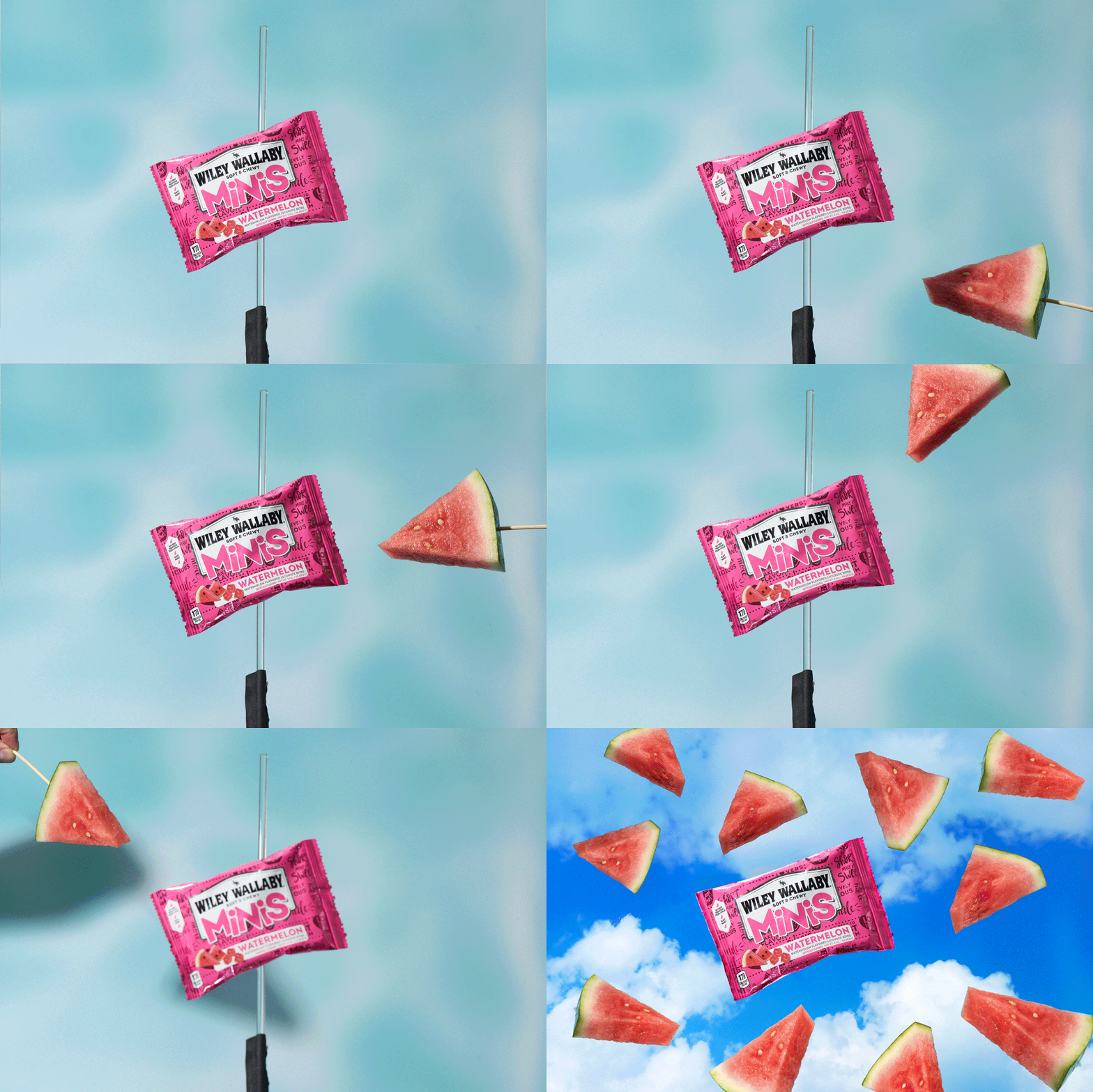
The modern marketing landscape demands assets in every aspect ratio imaginable: 16:9 for YouTube, 9:16 for TikTok, 4:5 for feed, and 1:1 for ads. In the past, this meant shooting wide and hoping for the best, or aggressively cropping and losing resolution.
Generative Fill allows you to uncrop an image.
By expanding your canvas and selecting the empty space, AI analyzes the existing lighting, depth of field, and texture to build a seamless extension of your scene.
Why this changes the game:
Repurpose assets instantly: Turn a horizontal hero shot into a vertical mobile ad without stretching the product
Save "bad" compositions: Add breathing room to a shot that was framed too tight in camera
Consistent framing: Ensure the product is perfectly centered for Amazon main images, even if it wasn't shot that way
Removing Problems Before They Become Re-Shoots
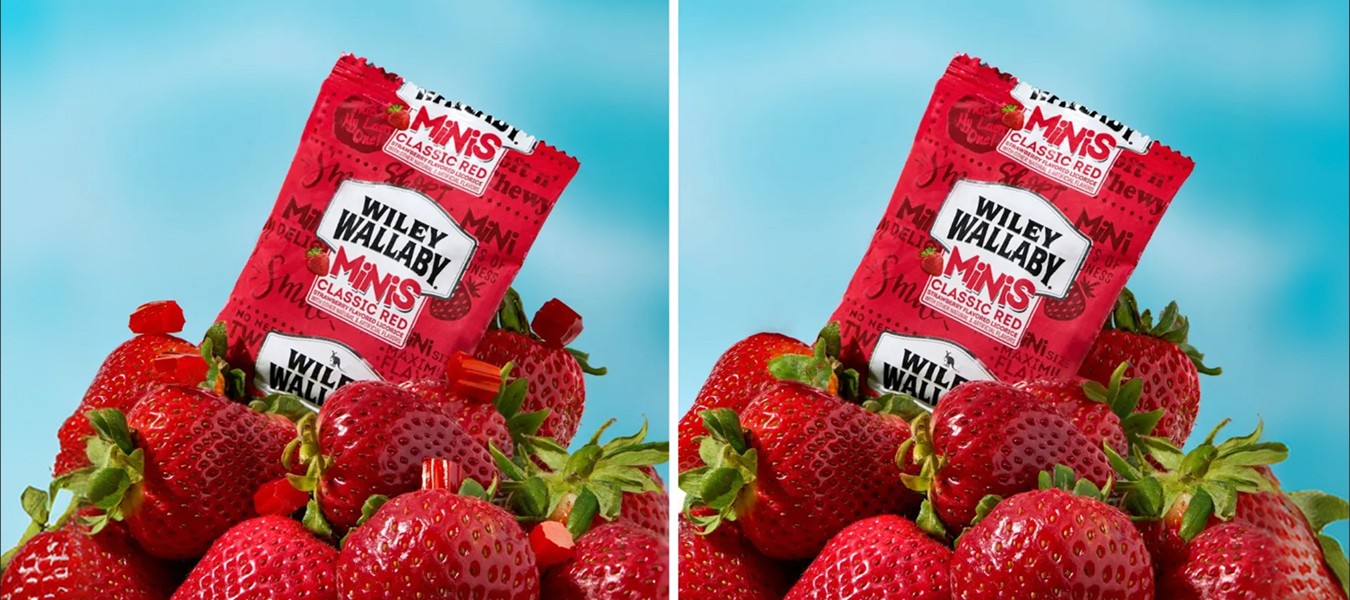
We've all used the "Content-Aware Fill" tool. It's great for simple grass or sky, but terrifying for anything complex. It often just copies a random patch of pixels from elsewhere, resulting in weird repeating patterns.
Generative Fill is different because it understands context.
If you remove a person standing in front of a complex bookshelf, Gen Fill doesn't just smear brown pixels over them. It rebuilds the bookshelf, inventing new books and shadows that match the perspective and lighting of the room.
The efficiency gain:
Removing complex distractions (light stands, cables, passersby) takes seconds, not hours
Cleaning up floor textures or seamless paper wrinkles becomes instant
No more manual reconstruction of background patterns
Adding What the Set Didn’t Have

Sometimes a shot feels empty. Maybe that kitchen counter needs a plant, or that desk needs a coffee cup. Traditionally, adding these elements in post required finding a stock photo with the exact right angle and lighting, then spending hours masking and color matching.
With Generative Fill, you can "sketch" with prompts.
You can select an area and type "small succulent plant, soft focus," and the AI will generate options that already match the lighting direction and depth of field of your photograph.
Use cases:
Testing concepts: Quickly show a client what the shot would look like with different props before committing to a reshoot
Seasonal updates: Add pinecones or ornaments to an evergreen shot to test a holiday look
Filling negative space: Balance a composition without needing physical props on set
Fixing Wardrobe and Styling on the Fly

Wardrobe malfunctions, like an untucked shirt, a wrinkled blazer, or a distracting logo, usually kill a great shot.
Instead of scrapping the photo or spending hours liquefying and patching, Generative Fill can smooth out fabric, change the color of a tie, or even generate a completely new garment that fits the model's pose perfectly.
Why this matters for production teams
Before Generative Fill, a wardrobe issue discovered in post meant choosing between expensive reshoots, compromised assets, or burning senior retoucher hours on tedious fabric reconstruction. Now those fixes happen in seconds, letting you iterate on styling choices without re-booking talent or sacrificing creative quality. You avoid reshoot costs, hit campaign deadlines, and keep retouching work focused on brand-level polish instead of damage control.
Seamless Background Cleanup
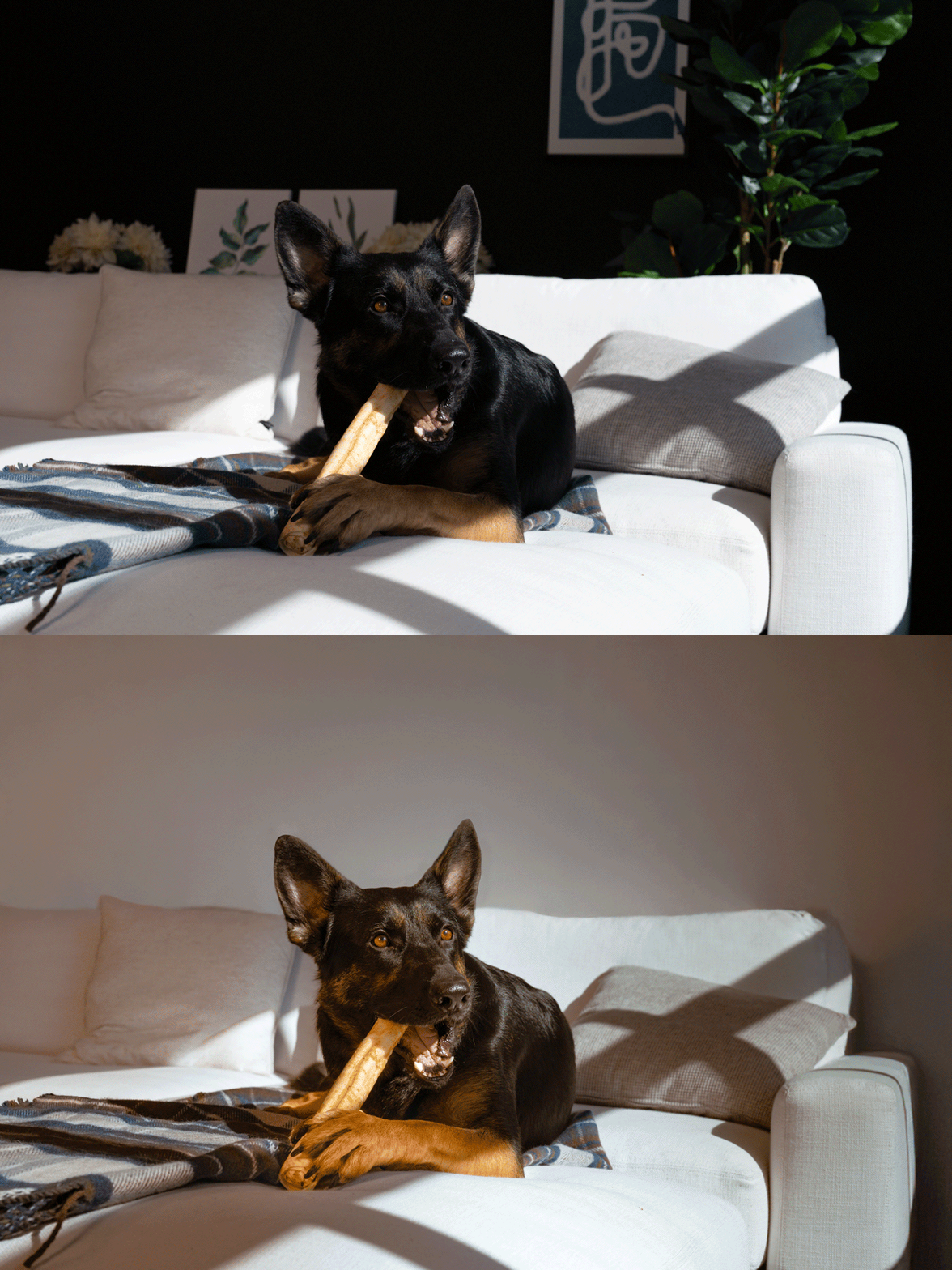
Studio photography often leaves you with scuffed seamless paper, dirty floors, or visible gaffer tape. Cleaning these surfaces while preserving the natural grain and gradient of the light is tedious work.
Generative Fill can replace large sections of a floor or wall with a "clean" version that still maintains the realistic noise and lighting falloff of the original shot. It excels at filling large, uniform areas while intelligently matching texture.
Saving the Shot You Thought Was Lost
Sometimes the perfect expression or product angle happens when the framing is just slightly too tight, leaving no room for text overlays or graphics. Instead of extending the canvas and manually cloning edges, Generative Expand allows you to simply drag the Crop tool beyond the image border.
The AI instantly analyzes the lighting and texture of the scene to generate seamless "breathing room" around your subject, turning a rejected tight crop into a layout-ready hero image in seconds. This is invaluable for dynamic social media content where flexible framing is crucial.
How to Use Generative Fill Without Overdoing It

Ready to speed up your workflow? Here are the best practices for getting clean results without the "AI hallucinations."
1. Overlap is key: When selecting an area to fill or expand, always include a small sliver of the original image in your selection. This gives the AI the "DNA" it needs to match the texture and noise.
2. Leave the prompt blank for removal: If you just want to remove an object, don't type "remove shoe." Just select the shoe and leave the prompt bar empty. The AI assumes you want to remove it and fill it with the background.
4. Keep prompts simple: Don't write a novel. "Blue coffee mug" works better than "Ceramic artisan coffee mug sitting on a table with steam rising." Let the AI infer the lighting from the image itself.
5. Fix resolution with noise: Sometimes AI generation can look too "smooth" compared to a grainy photograph. Always add a small amount of monochromatic noise to your Generative layer to match the grain structure of your original photo.