

Author

7 Minute Read
TLDR;
Holiday creative doesn’t have to be recycled. Neato’s video team starts with your best-performing ads, then uses AI tools (like Google’s NanoBanana in Photoshop), motion tracking, and VFX in After Effects to layer in holiday elements—trees, snow, sound design—all built in post for a fast, on-brand Q4 refresh.
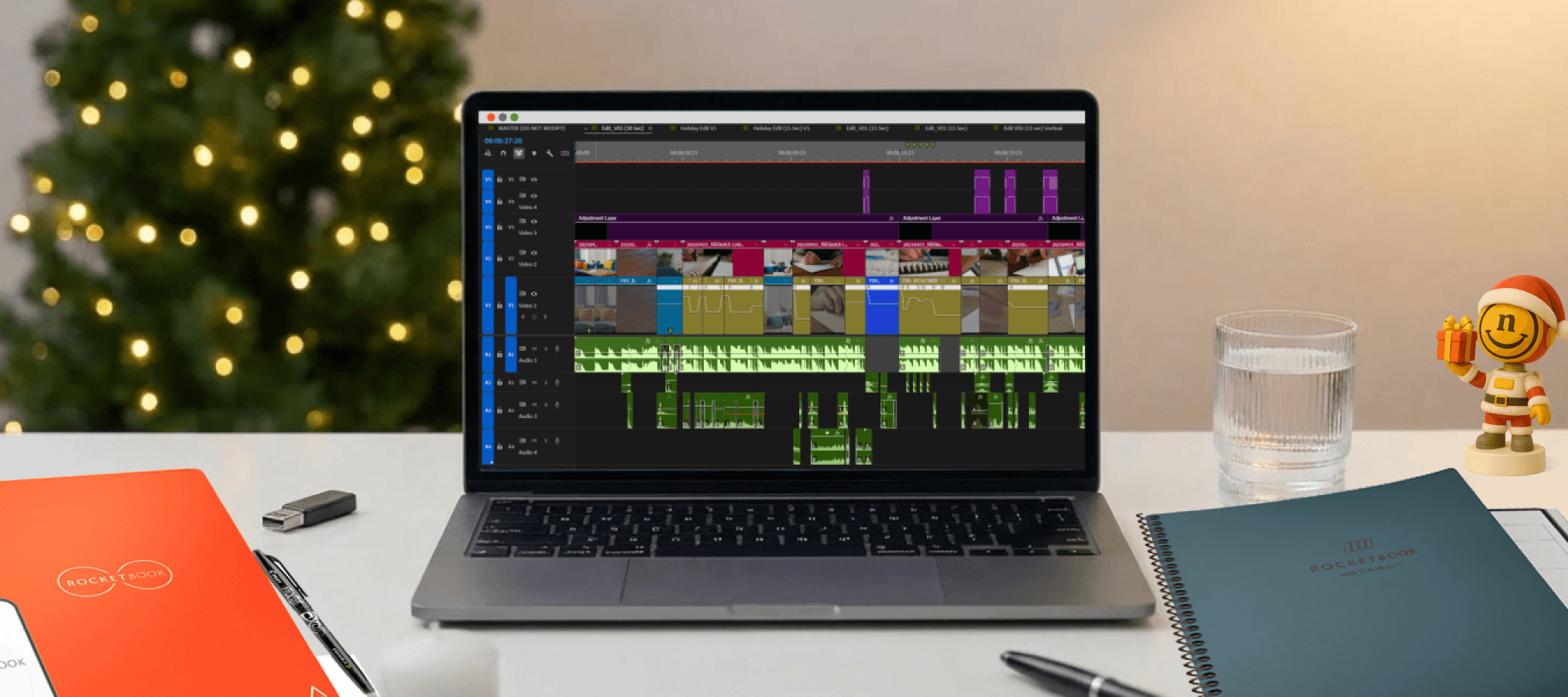
Q4 is the moment when even your strongest ecommerce creative starts to lose its edge. Your top-performing ads have been working hard all year, but once Black Friday and Cyber Monday arrive, the holiday season compresses timelines and amplifies repetition. Audiences see the same hooks again and again. Performance softens. Budgets stretch further than they should.
That pressure often pushes brands toward the fastest seasonal updates they can produce. Usually something like a Santa hat dropped onto the logo, red-and-green LUT over the footage, or a generic Holiday Sale text overlay in an off-brand font
These shortcuts aren’t inherently wrong, but they’re the reason so many holiday ads feel interchangeable.
The issue isn’t effort—it’s workflow.
When seasonal updates rely on surface-level overlays, three problems tend to follow:
Creative fatigue — Viewers have already seen this treatment on five other ads today.
Brand drift — Seasonal clichés slowly overpower your actual identity.
Operational drag — More new concepts = more revisions at the worst point in the year.
At Neato, we approach holiday creative differently. We use AI as a power tool that supports human taste. Not a shortcut that replaces it. The goal is to extend the life of a winning ad by building a holiday treatment that feels intentional, cohesive, and fast to produce.
In this piece, we’ll walk through how our video team “winterized” one of Rocketbook’s top-performing hero ads using AI inside Photoshop, motion tracking, and VFX all crafted entirely in post, with no reshoots. Then we’ll turn that workflow into a practical Q4 cheat sheet any creative team can adapt for their seasonal campaigns.
Inside the Rocketbook Holiday Brief
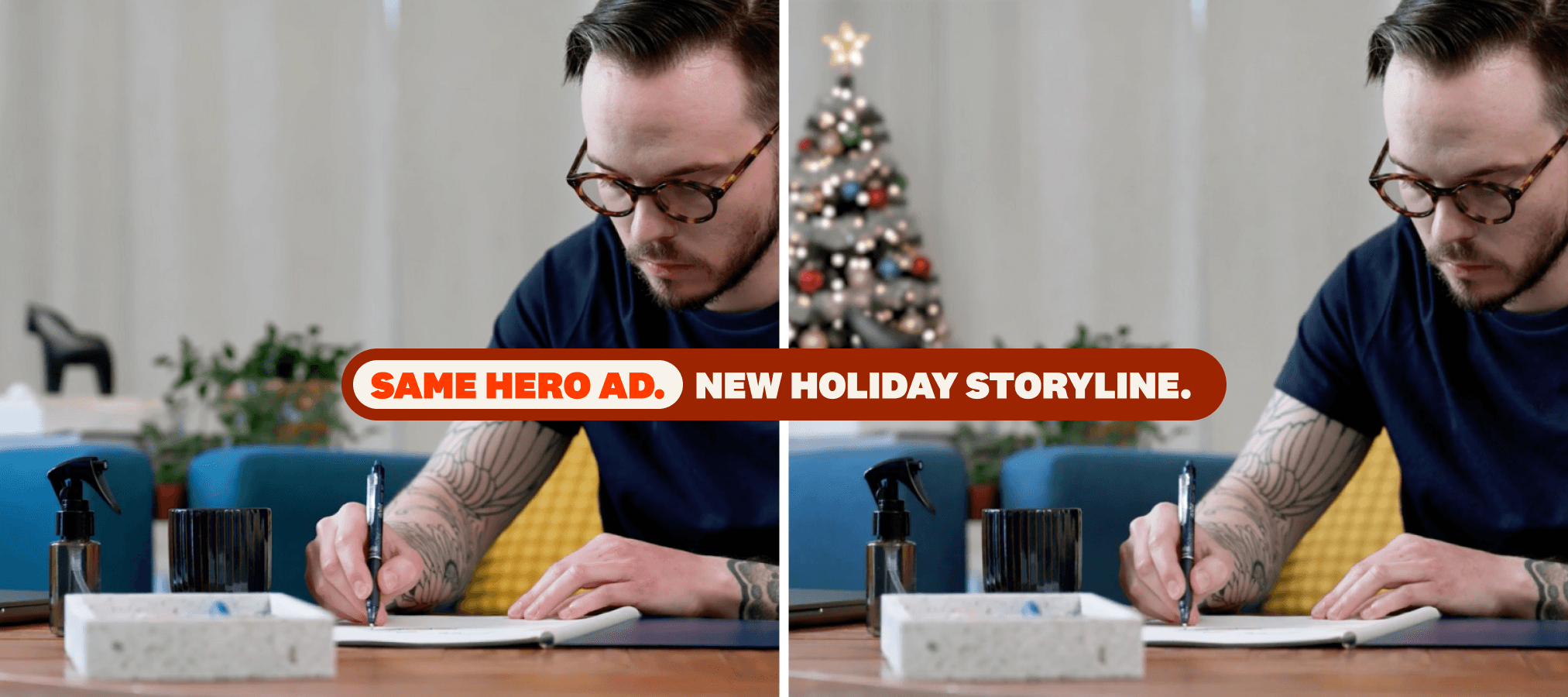
If you’re not familiar with Rocketbook, they make endlessly reusable notebooks and productivity tools that bridge analog and digital. It’s a category that lives and dies on clear product storytelling: show how it works, why it’s different, and how it fits into someone’s everyday routine.
Neato had already produced a hero video ad for Rocketbook that was doing exactly that. It was one of their best-performing spots: tight scripting, strong hook, clean product shots, and clear demonstrations. In other words, the kind of asset you want to keep running as long as possible.
Then the holidays rolled in. Rocketbook didn’t need an entirely new concept. They needed a holiday-ready version of the ad that was already printing results. a.k.a fast enough to catch Q4 windows across:
Paid social
Amazon and marketplace listings
PDP and retail.com placements
Email and onsite hero slots
The brief boiled down to:
Keep the structure: Same messaging, same pacing, same key scenes.
Add Christmas/holiday flavor: Visually and sonically, it should feel like a holiday spot.
Stay on-brand: No random fonts, no off-palette reds, no “Hallmark movie” clichés that don’t fit Rocketbook.
Do it in post: No new shoot days. Build on what we already had.
AKA perfect conditions for an AI-powered workflow.
Breaking a Hero Ad into Reusable Building Blocks
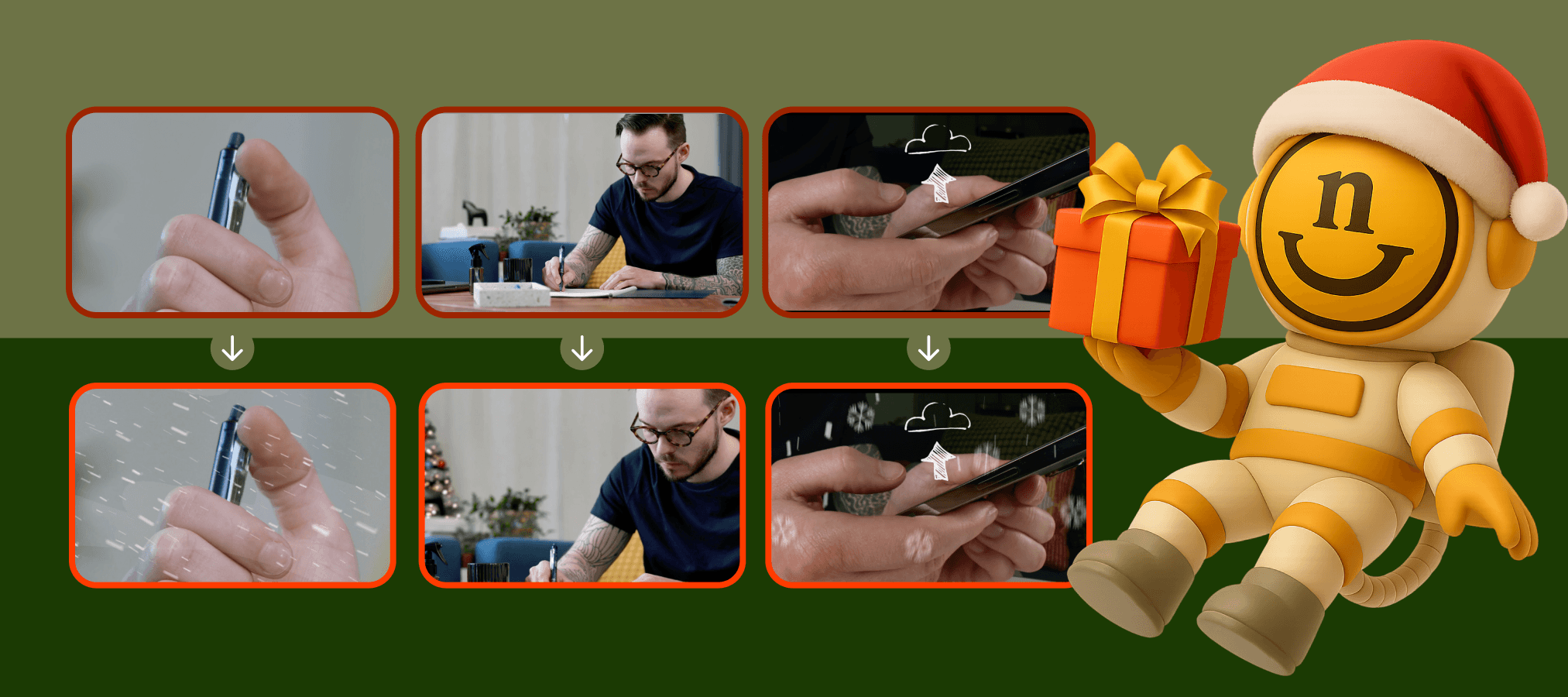
Before any AI tool gets opened, we do something extremely low-tech: we break the ad down.
Instead of treating the Rocketbook spot as a single 30-second file, we treated it as a library of parts:
Hero product shots – where the notebook is clearly visible and framed nicely.
Context shots – desks, workspaces, and backgrounds that could host décor.
Hands and people shots – where we needed to be extra careful with any AI additions.
Graphics and supers – text frames, UI callouts, and end cards.
From there, the team:
Pulled key scenes into a shot list.
Exported clean stills of the most important frames from the timeline.
Flagged “high potential” backgrounds for additional holiday elements.
This step is easy to skip when you’re in a rush—but it’s where the AI work actually gets easier and more controllable. By treating the spot like a parts bin, we could ask more specific questions:
Where would a Christmas tree make sense in the scene?
Which desk shots could handle extra décor without distracting from the product?
Which scenes should stay almost untouched because they’re doing heavy lifting for education or clarity?
Only once that inventory was mapped out did we start bringing AI into the mix.
AI + VFX in Action: How We “Winterized” Rocketbook
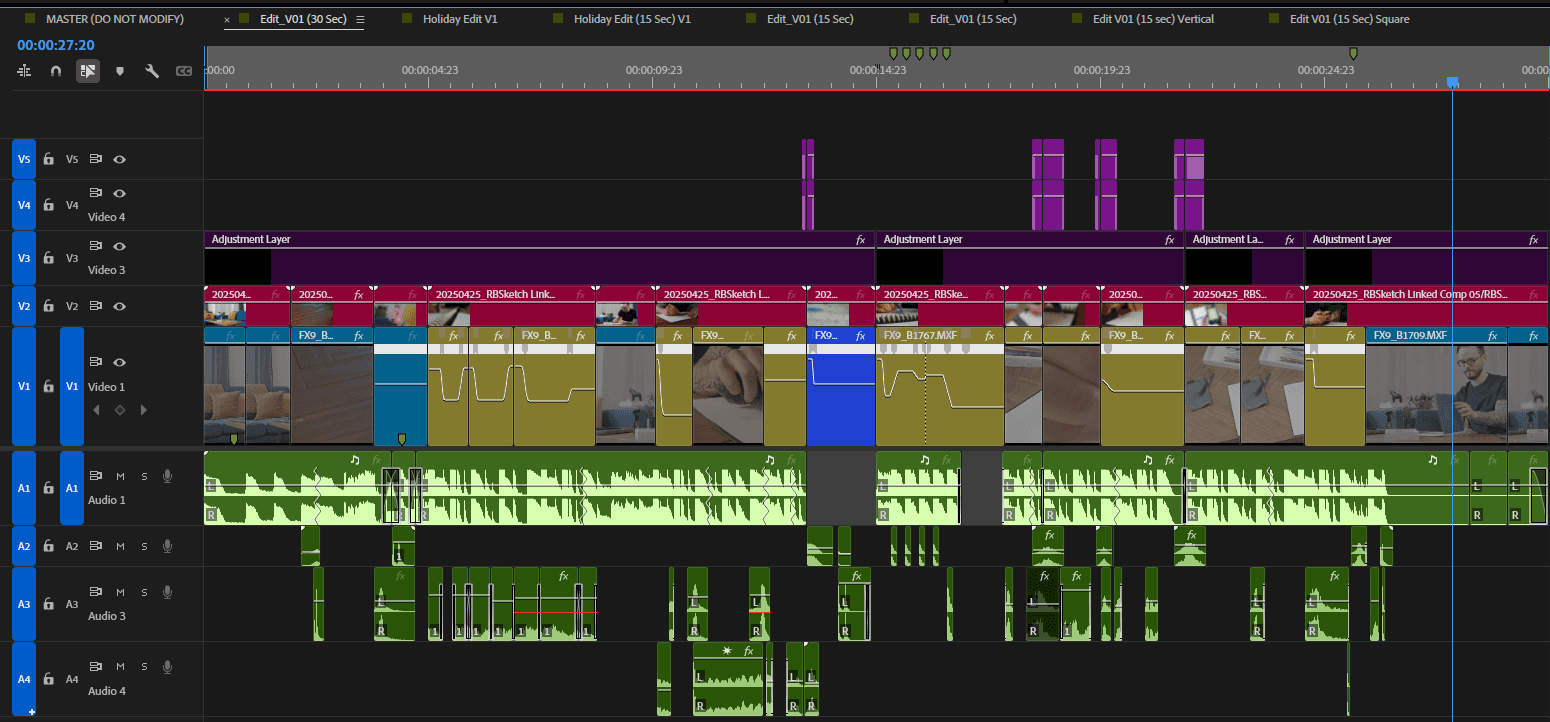
Once the Reusable Building Blocks were mapped, we moved into production—using AI and VFX to build holiday elements entirely in post, without touching a camera. The goal wasn’t to reinvent the ad. It was to extend its life by giving it a holiday storyline that felt intentional, consistent, and on brand.
Here’s the workflow our team used.
Step 1: Generate a Christmas Tree That Belongs in the Scene
The Rocketbook spot had several desk and workspace shots that could host décor without distracting from the product. A Christmas tree became the anchor for the entire holiday treatment.
Instead of generating random trees per frame, we:
Pulled stills from key scenes into Photoshop
Used Google’s NanoBanana image model to generate décor that matched each environment
Refined prompts until the tree:
Matched the existing lighting
Fit the scene’s angle and perspective
Used a modern, minimal style that aligned with Rocketbook’s brand
We weren’t looking for “generic Christmas tree.” We were looking for a Rocketbook Christmas tree. Once we landed on a look, we separated the AI trees into layers for movement and integration.
Preparing the AI Elements for Animation

Once we liked the look, we separated the AI trees into layers for movement and integration.
Step 2: Motion Track Those AI Elements into the Footage
Static images weren’t enough. The Rocketbook ad includes camera movement, hand movements, and natural shifts in the environment.
To make the AI-generated tree feel truly “on set,” we:
Brought the edited frames and tree layers into After Effects from Photoshop.
Used Mocha AE and After Effects’ built-in motion tracking to pin the tree to the correct surfaces and positions in each shot.
Tweaked scale, perspective, and slight parallax shifts so the tree moved in sync with the original camera motion.
The result: the AI-generated tree behaves like it was there when the footage was shot. No sliding. No drifting. Just a natural part of the room.
Step 3: Add Supporting Holiday VFX and Audio
With the tree locked in, we layered in additional holiday cues—all still handled in post:
Snow overlays and transitions
Light snow fall in select shots, especially transitions, to keep things feeling festive without covering the product.
Tasteful snow-based wipes between scenes to add motion and keep the pacing snappy.
Holiday-inflected sound design
Subtle jingle bell accents woven into the existing music track, timed to key visual moments.
Soft whooshes and chimes on important supers or scene changes.
All of this sat on top of the original structure:
Same script
Same runtime
Same beats that were already performing for Rocketbook
We essentially created a “holiday skin” for a spot that we already knew worked, built entirely in post with AI and VFX tools. No reshoots, no new locations, no scrambling to rebuild a winning ad from scratch.
Staying On-Brand While You Go Full Holiday
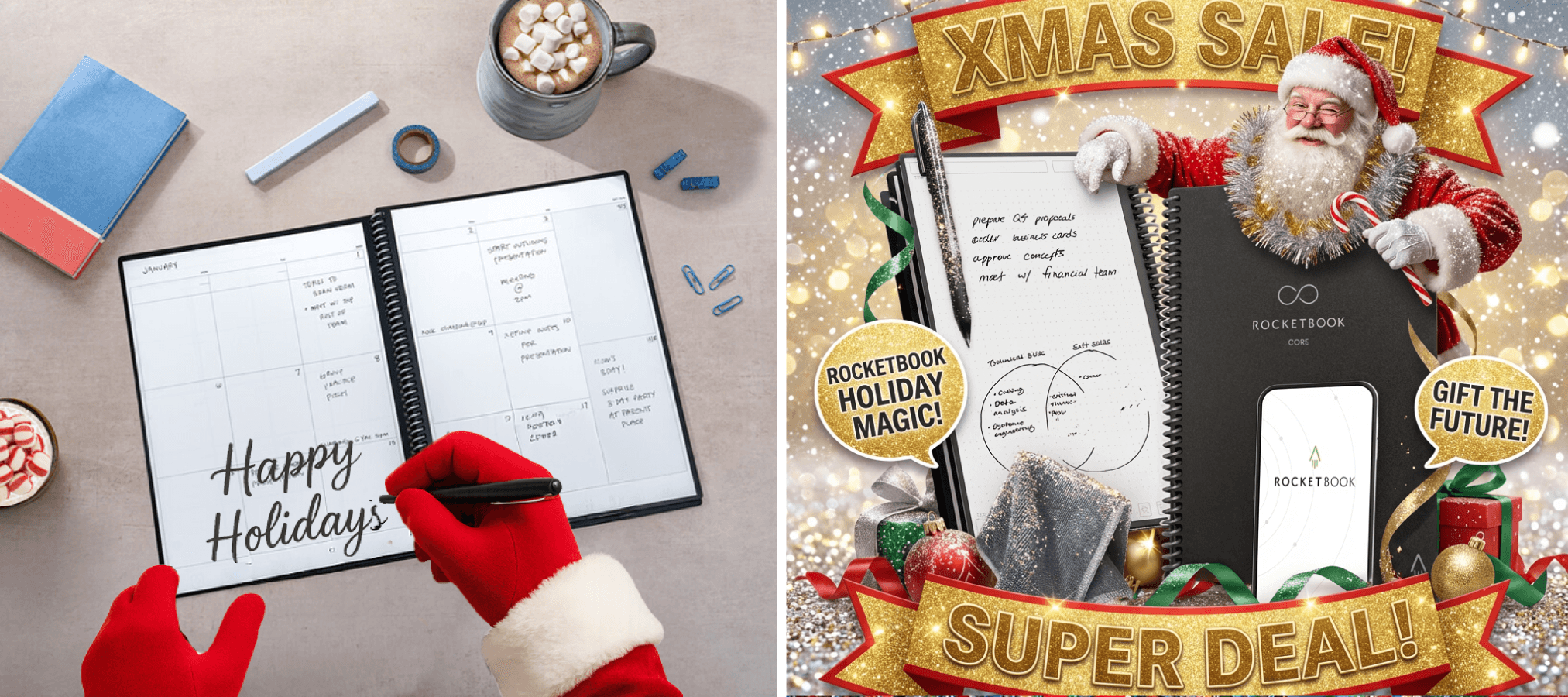
Holiday creative is where brand guidelines quietly disappear. A quick red overlay here, a new script font there and suddenly the campaign feels like it came from a different company.
For Rocketbook, we treated brand integrity as a non-negotiable constraint:
Type: All supers and graphics stayed in the approved type system. No novelty “holiday” fonts.
Hierarchy: The product and message stayed front and center. Holiday elements framed the story; they didn’t become the story.
Tone: The spot kept Rocketbook’s calm, clever, productivity-forward feel. No slapstick humor if it wasn’t there before.
On the AI side, that meant being picky:
Prompting for “subtle, modern holiday décor” rather than “crazy Christmas decorations.”
Regenerating when a tree or ornament set felt too cartoonish, too busy, or too off-brand.
Treating every AI output as a starting point, not a finished frame.
A simple rule guided every decision: If you muted the audio and took a screenshot, it should still be obvious that this is a Rocketbook ad—holiday or not.
When AI is used inside those guardrails, it stops being risky and starts being powerful. You get the speed and range of automated generation, filtered through a brand lens that keeps everything recognizably “you.”
Your Q4 Creative Cheat Sheet
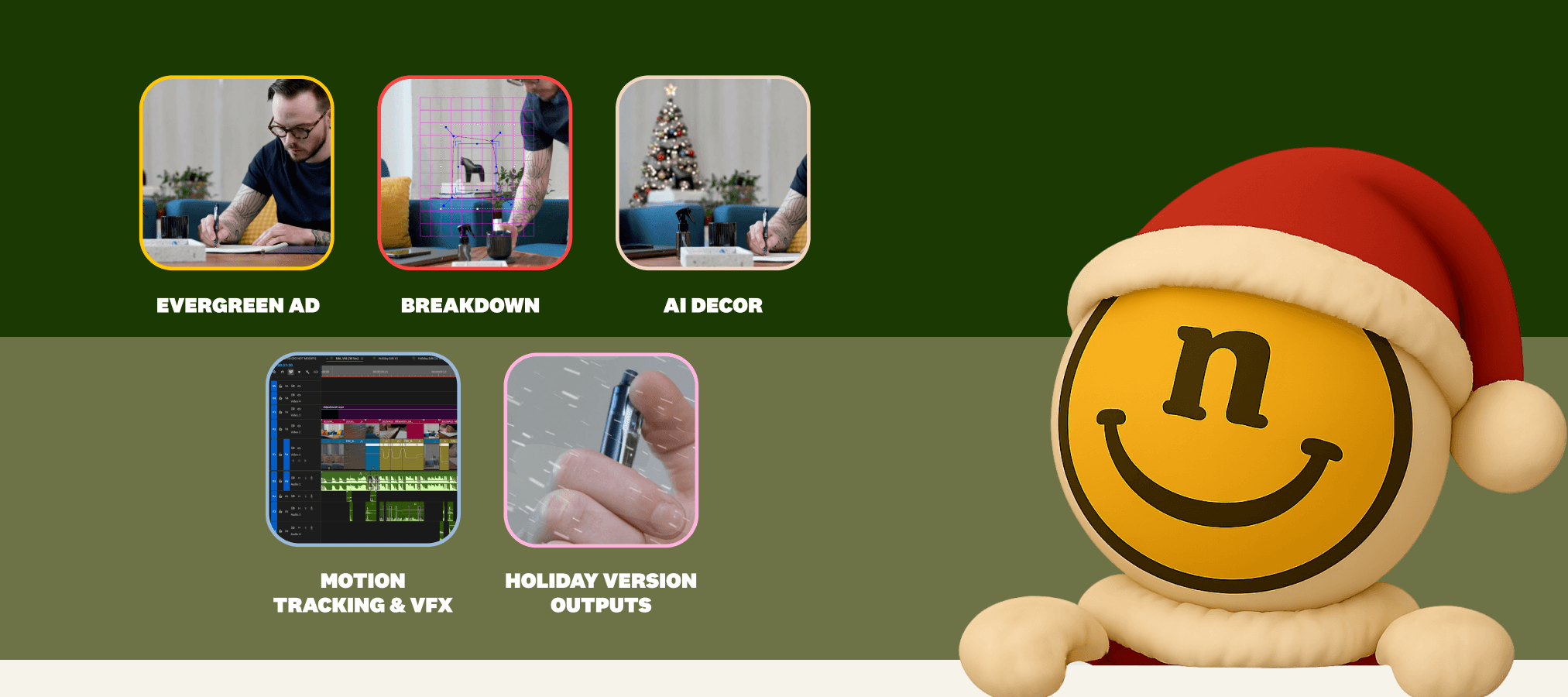
You don’t need Rocketbook’s exact setup—or Neato’s entire production team—to borrow this approach. Here’s a condensed version you can drop into your own Q4 workflow.
1. Start with a proven hero asset.
Pick a video or motion asset that’s already performing. Don’t reinvent the wheel if you don’t have to.
2. Break it into parts.
Log the key scenes and frames where:
The product is clearly visible.
Backgrounds can host décor.
There’s room to add visual interest without clutter.
3. Export stills for AI work.
Pull high-res frames into Photoshop or your tool of choice. These become your canvases for AI-generated décor (trees, lights, window scenes, etc.).
4. Use AI for décor, not for brand voice.
Let models like NanoBanana from Google handle things like:
Trees and décor across scenes
Background enhancements
Lighting and mood tweaks
But keep copy, strategic framing, and key brand decisions firmly human.
5. Motion track everything into place.
Bring AI-generated elements into After Effects (and, if you have it, Mocha AE) to:
Pin décor to surfaces
Match camera motion and perspective
Blend with real lighting via glows, shadows, light wraps and feathered masks
6. Layer in holiday sound design.
Use sound to reinforce the visual shift:
Jingle bells and chimes aligned with key actions.
Slightly warmer or more cinematic mix for the music.
7. Version fast.
Once the core holiday pass is locked, spin out:
9:16, 1:1 versions for socials/paid ads
Shorter cutdowns for paid social. Think 15 seconds.
Quiet, loopable cuts for PDPs and retail.com placements
8. Review like a brand steward, not just an editor.
Gut-check each version:
Does this still look and feel like our brand?
Is the product message clear, or did we bury it under tinsel?
Would we be proud to run this next to our non-holiday creative?
If the answer is yes, you’ve got yourself a Q4-ready creative engine—not just a one-off holiday ad.
